You can create multiple specifications under a project. A specification uses a template and it is used to document the requirements.
To create new specifications, follow these steps:
- Go to Application Menu > Data Catalog > Requirements Manager.
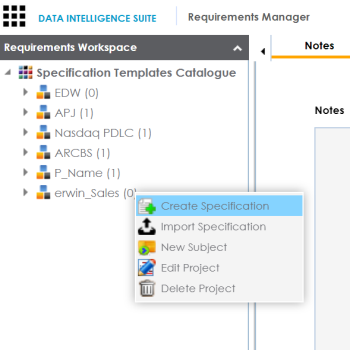
- Under the Requirements Workspace pane, right-click the required project.
- Click Create Specifications.
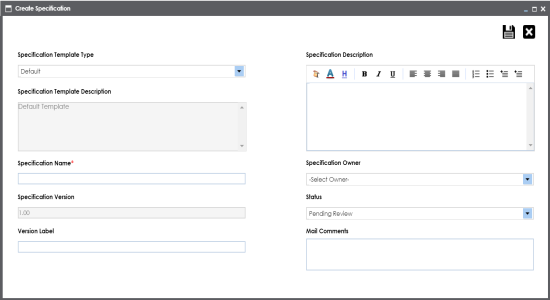
- Enter appropriate values in the fields. Fields marked with a red asterisk are mandatory. Refer to the following table for field descriptions.
- Click
 .
.
The Create Specification page appears.
|
Field Name |
Description |
|---|---|
|
Specification Template Type |
Specifies the template of the specification. For example, Health Migration Template. You can create templates and add artifacts to templates in the Requirements Manager Settings. |
|
Specification Template Description |
Specifies the description about the specification template. For example: The Health Migration Template is to capture functional and business requirements of the data migration project. |
|
Specification Name |
Specifies the name of the specification. For example, OrganMatch. |
|
Specification Version |
Specifies the version of the specification. For example, 1.01. The specification version is autopopulated. For more information on configuring version display of specifications, refer to the Configuring Version Display topic. |
|
Version Label |
Specifies the version label of the specification. For example, Beta. For more information on configuring version display of specifications, refer to the Configuring Version Display topic. |
|
Specification Description |
Specifies the description about the specification. For example: The specification uses the Health Migration Template to capture functional and business requirements of the data migration project. |
|
Specification Owner |
Specifies the specification owner's name. For example, Jane Doe. |
|
Status |
Specifies the status of the specification. For example, Pending Review. |
|
Mail Comments |
Specifies the mail comments, which are sent to the project users. For example: The specification uses the Health Migration Template. For more information on configuring email notifications, refer to the Configuring Email Settings topic. |
A new specification is created and stored in the Specifications tree.
A tree of artifacts appear under the specification node. These are the artifacts which were added to the selected template.
Once a specification is added to the project, you can:
|
Copyright © 2020 erwin, Inc.
All rights reserved.
|
|